You Clicked “Allow” on an App After a Real Sign-In Page
A shared-file link led to a genuine Microsoft or Google sign-in, then a permission prompt. Why a new password will not cut the app off, and how to remove it.
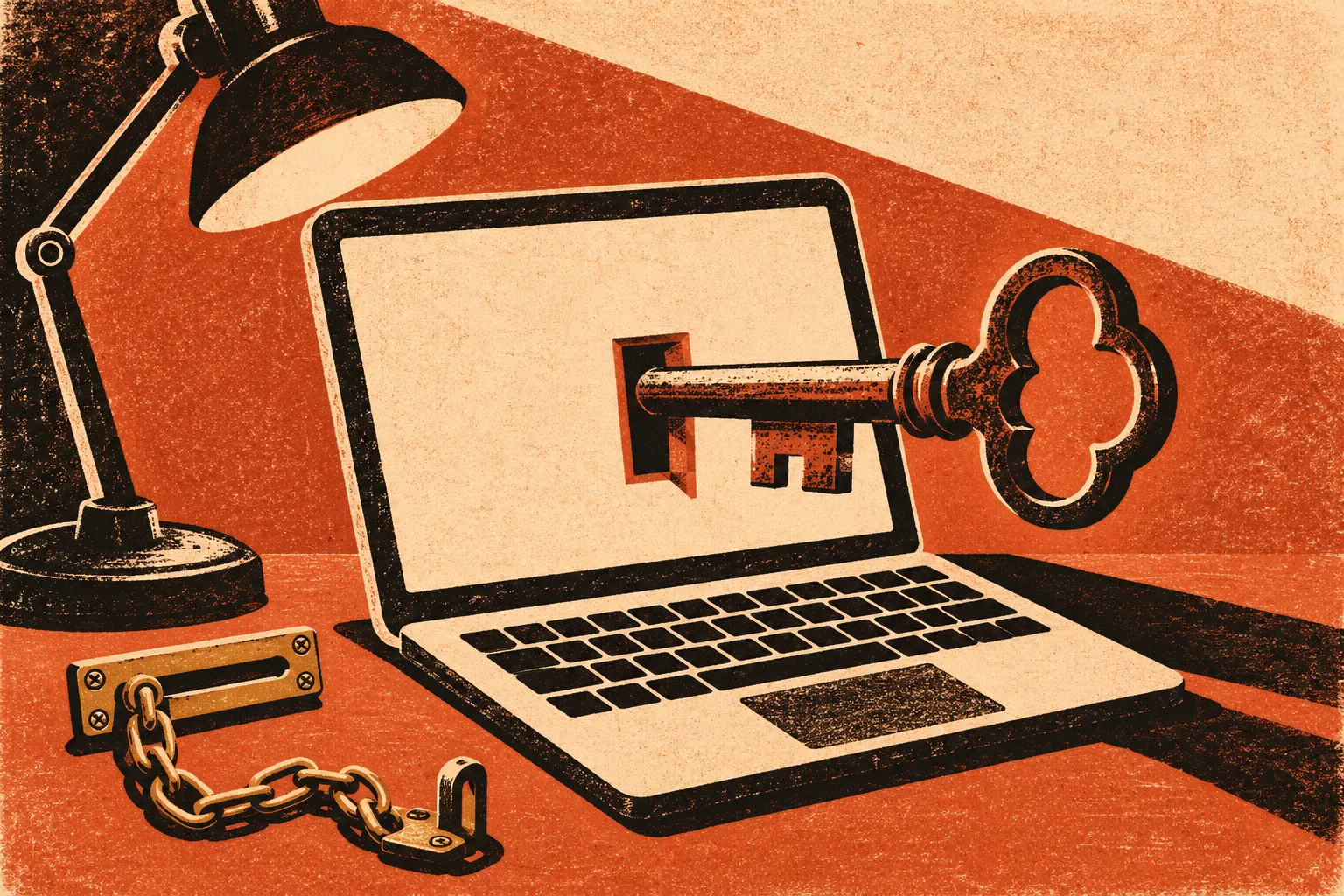
Someone sent a link to “review a draft” or “verify your identity for the event.” It opened a real Microsoft or Google sign-in page, so you signed in. Then a box asked to let an app see your email and files, and you clicked Allow. If that app was not one you meant to connect, changing your password will not remove it. Removing the app’s access will.
The quick answer
Go to your account’s list of connected apps, find any app you do not recognize, and remove its access. Then tell anyone who needs to know, and report it. The rest of this page explains why that order matters and where the settings live.
The FBI described this exact pattern in a public service announcement, I-090126-PSA, dated September 1, 2026. It calls the technique OAuth consent phishing. OAuth is the system that lets one app use part of your account on another service without ever seeing your password; it is how “Sign in with Google” and similar buttons work. The FBI says that since late 2025, criminals have registered apps with legitimate providers, given them names that sound like file-sharing or identity-verification services, and sent people links that lead to a genuine login page followed by a request for permissions. When the person clicks Allow, the FBI says, “they unwittingly grant high-level access to a malicious application controlled by the cyber actor.”
The FBI’s announcement says victims may believe the problem is fixed after changing their password, and that “this is not the case.” The app holds a permission, not your password, so it keeps working after a password change and even with multi-factor authentication turned on. You have to remove the app’s access in your account’s security settings.
Which situation are you in?
| What happened | What it likely means | Do this first |
|---|---|---|
| You saw a permission box after signing in and clicked Allow or Accept | An app may now have the access it asked for, such as reading email or files | Remove the app’s access (steps below), then report |
| You signed in, saw the permission box and closed it | No permission was granted, as far as the FBI’s description goes | Check the connected-apps list anyway, then delete the message |
| You typed your password into a page and never saw a permission box | This may be ordinary password phishing instead | Change the password, turn on two-step verification, and check recent sign-ins |
| It was a work or school account | Your organization’s systems and data may be involved | Tell your IT or security team right away; the FBI recommends notifying them |
Removing the app: Google accounts
Google’s help page Manage links between your Google Account and apps from other developers describes the steps.
- Sign in to your Google Account and open its page of linked third-party apps and services.
- Under “Access to your Google Account,” select the app you want to review.
- Select “See details” to check what the app can reach.
- Select “Remove access,” then confirm.
Google says that once you remove access, the app can no longer access your Google Account. Look for anything with a vague name that sounds like a document viewer, file share or verification tool, especially one added on the day you clicked the link.
Removing the app: personal Microsoft accounts
For a personal Microsoft account, such as Outlook.com, Hotmail or Xbox, the list of connected apps sits in your account’s privacy and app access settings. A community article on Microsoft Q&A points to microsoft.com/consent, where, after you sign in, you see the services connected to your account, can open each to see what it accesses, and choose “remove these permissions.” This is a volunteer-written help article rather than official documentation, and Microsoft sometimes renames these menus, so if the wording differs, look for an app access or connected apps section in your account’s privacy settings.
Work and school accounts
If the account belongs to your employer or school, do not try to clean it up quietly on your own. The FBI’s announcement tells people who suspect compromise to notify their organization’s security staff. The administrator can see which app was approved, remove it for you, and check whether it has already read or copied anything. Tell them the time you clicked, the link you were sent, and the name shown on the permission box if you remember it.
After the app is gone
Removing access stops the app from reaching your account from now on. It does not undo anything it already did. Work through these checks.
- Email rules and forwarding. Look in your mail settings for forwarding addresses or filters you did not create, and delete them.
- Sent mail. Check whether messages went out from your account that you did not write, especially the same “review this document” link going to your contacts. If so, warn those people directly.
- Recent activity. Both Google and Microsoft show recent sign-ins and security events in your account settings. Note anything you do not recognize for your report.
- Files. If the app asked for file access, look at recently shared or downloaded items in your cloud storage.
- Your password and two-step verification. Still worth doing after the app is removed, in case you also typed credentials somewhere you should not have.
Report it and keep a record
The FBI asks people to keep screenshots of the messages and to record any information the attacker requested. Report to your local FBI field office or the Internet Crime Complaint Center at ic3.gov. Include the sender’s account or number, the link, and the app name you removed.
The FBI notes that this technique has been aimed at prominent people and also at their family members and acquaintances. If you are related to, or work closely with, someone in public life, tell them too; the same sender may try them next.
The message that started it
According to the FBI, these messages often come from unfamiliar numbers or accounts, sometimes impersonating a government official, a journalist, an academic or an event planner, and they ask you to review a draft, open a file share or verify your identity for an event. You did not do anything unusual by signing in. The login page was genuine, and that is exactly why the method works. The FBI’s advice for next time is to verify an unexpected sender through a separate, trusted channel, and to grant authorization only to apps you trust.
Related account takeovers start differently. A Discord “verification” link goes after the Microsoft password itself, and a fake copyright warning with an appeal link targets social media logins. If a “support agent” got onto your computer instead, the remote-access recovery guide covers what to secure.
Sources
- FBI IC3, Malicious Cyber Actors Gain Access to Victim Accounts Through Consent Phishing, I-090126-PSA (September 1, 2026)
- Google Account Help, Manage links between your Google Account and apps from other developers
- Microsoft Q&A community article, Managing apps and services connected to our Microsoft Accounts
Found a factual error or a source that has changed?
Send a correction →