A Discord ‘Minecraft Verification’ Link Wants Your Microsoft Account: What to Do Next
Discord ‘verification’ that asks for a Microsoft password, one-time code, Authenticator approval, or app permission may be an account-takeover lure. Learn how to identify what you approved, recover access, revoke sessions or app access, and protect your linked email, files, and purchases.
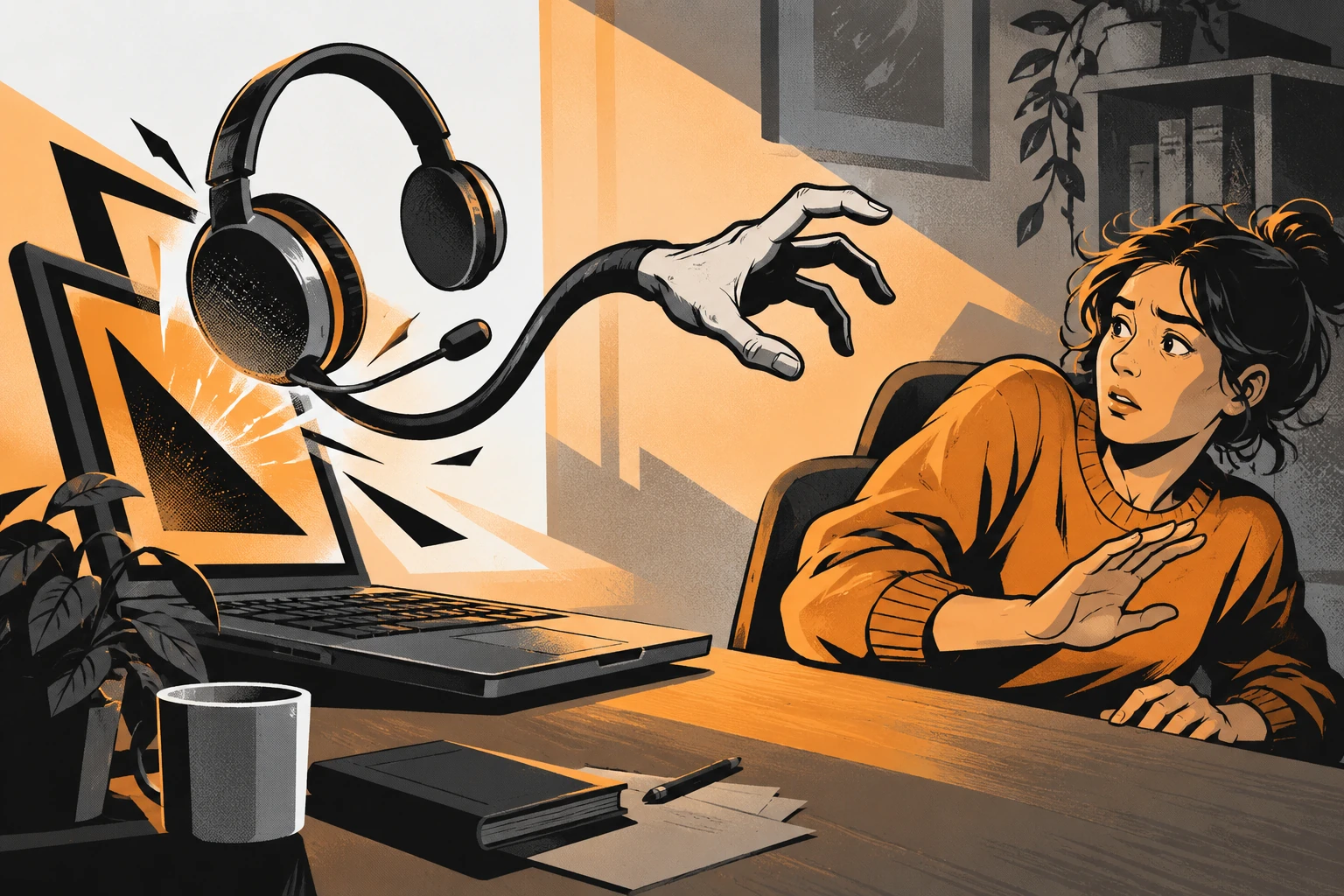
Quick answer: A Discord server does not need your Microsoft password, one-time code, device code, or Authenticator approval to let you read its channels. If a “verification bot” sent you to sign in, type a code, or approve a request, stop using that link. Secure the Microsoft account through Microsoft’s official account pages, then check for active sessions, changed recovery details, mail forwarding, connected apps, and purchases. The right recovery steps depend on exactly what you entered or approved.
- Do not approve another sign-in request or share a code—even if the message says it is needed to cancel the first one.
- From a device you trust, open Microsoft directly and try its official account recovery or sign-in helper.
- If you still have access, change the password, review recent activity and security info, and sign out other sessions.
- If you approved a third-party app, revoke that app’s permissions too; a password change alone may not remove every authorization token.
- Warn the Discord server’s real moderators through the server’s established channel, not by replying to the bot or a private “support” account.
A recent October 2026 r/Scams post described a person who said they lost a Microsoft account after “verifying” an email in a Discord server filled with bots. Their report later mentioned suspicious messages and attempted purchases. It is one person’s account, and the exact technical path was not independently established. That uncertainty matters: “verification scam” is a label for several different lures, not a diagnosis of what happened to a particular account.
Other recent Minecraft community reports describe a more specific pattern: someone joins a server that appears connected to a creator or event, then a verification step asks for the Microsoft email and a code—or asks the user to approve a Microsoft Authenticator prompt. In a September 2026 advisory, the FBI warned that attackers can also abuse legitimate authorization screens: a victim may sign in and grant an unfamiliar application access, allowing continued account access without handing over a password. These incidents are related in their social engineering, but the exact mechanism can differ.
What the “verification” step may actually be asking you to do
| What happened on screen | What it may mean | First response |
|---|---|---|
| You typed your Microsoft password into a page opened from a Discord link. | The page may have captured credentials. A convincing logo or Microsoft-looking address in the page design does not prove it is genuine. | Go to Microsoft directly from a trusted device; change the password if you can and review recent activity and recovery details. |
| You entered a code sent by Microsoft or typed a device code into a Microsoft page. | You may have approved a sign-in for someone else. The code may be valid even when the page itself is real. | Use Microsoft account security controls, revoke sessions, and inspect sign-in activity. Do not enter another code sent by a stranger. |
| An Authenticator prompt appeared and you tapped Approve. | The prompt may have been an attacker’s sign-in request. The notification is not proof the request came from Discord. | Deny any new prompts. Secure the account and check whether recovery information changed. |
| A permission screen asked you to grant an app access to email or files. | This may be OAuth consent phishing. The FBI says a granted app can retain access through an authorization token. | Review connected apps or app permissions in the Microsoft security dashboard and revoke anything you do not recognize. |
| You downloaded a file, mod, or “verification tool.” | The risk may involve malware or remote-access software, not just a stolen password. | Do not open it again. Disconnect a device showing suspicious behavior and scan it using reputable built-in security before changing passwords there. |
Why a fake server can feel legitimate
Discord communities make it easy to move between servers, events, fan groups, game tournaments, and creator announcements. A fake server can copy familiar names, artwork, moderator titles, and channel layouts. It can also collect a large member count using bots. None of those details establish that the server is affiliated with the person, game, or organization it claims to represent.
The lure often offers something the user already wants: tournament access, a whitelist, a role, a beta test, a free cosmetic item, or access to a creator’s private channels. The target is not thinking “I’m handing over my account.” They are trying to complete a familiar membership step. An official-looking Discord bot can make the handoff feel routine. The important boundary is simple: community access should not require a Microsoft account code, password, or unexpected authorization grant.
Discord server ownership and account verification are separate from Microsoft sign-in. If someone says “Microsoft requires this for Discord,” stop and verify through Discord’s real support resources or the game’s official website. Do not rely on a link posted in a server that you only just joined. Find the developer’s or organizer’s official site independently and compare its community links.
Account recovery: work in the right order
1. Stop feeding the attacker information
Leave the verification page. Do not answer follow-up DMs, share screenshots containing codes, or give a stranger access to your screen. If the account is still open on a trusted device, avoid signing out until you know how you will regain access. Use a fresh browser tab and type Microsoft’s address yourself instead of using a link in Discord or email.
2. Use Microsoft’s official sign-in helper
Microsoft’s compromised-account guidance points users to its sign-in helper and account recovery options. If the account still accepts your current password, change it to a unique one you have never used elsewhere. If you cannot sign in, use Microsoft’s recovery form from a device and location you have used before where possible. Follow the instructions for the account type; a personal Outlook/Xbox account and a work or school account may have different recovery routes.
Do not send your password, security codes, payment details, or recovery answers to anyone in a Discord chat claiming to be Microsoft Support. Microsoft’s own support page is the route to use. If you use the recovery form, provide accurate information you know; repeated guesses or made-up details can make the process harder to evaluate.
3. Review sign-ins and secure the recovery path
Once back in, review recent sign-in activity and mark unfamiliar events using Microsoft’s controls. Check security information such as recovery email addresses, phone numbers, and authentication methods. Remove details you did not add, then make sure at least one recovery route you control still works. Check your inbox for messages about a changed alias, password, or security setting; attackers sometimes alter the recovery path before the owner notices.
Microsoft’s “sign out everywhere” feature can sign your account out of browsers and apps across devices, though the company says that process can take up to 24 hours and excludes Xbox consoles. Use it when you suspect unauthorized access, and then sign back in only on devices you trust. Changing a password is important, but do not assume it automatically handles every app permission or token.
4. Revoke unknown app access
If you remember clicking “Allow,” “Accept,” or “Continue” on a screen listing what an application could access, inspect the connected apps or permissions area of your Microsoft account security dashboard. Revoke unfamiliar or unnecessary access. The FBI’s consent-phishing alert explains why this step matters: an application can receive an authorization token that allows it to act within the permissions granted. In that scenario, changing the password alone may not invalidate the app’s access.
If the screen only asked you to sign in, this OAuth step may not apply. Do not randomly remove every trusted app. Remove what you do not recognize, and if the list is unclear, consult Microsoft Support. For work or school accounts, contact the organization’s IT/security team; administrators may need to revoke tokens and review sign-in records.
5. Check mail rules, files, and payment activity
Review connected accounts, forwarding rules, automatic replies, and mailbox settings. Attackers sometimes create a forwarding rule to receive copies of messages or hide security alerts. Check OneDrive or other cloud storage for unfamiliar sharing links, deleted files, or changed permissions. Review Xbox purchases, subscriptions, Microsoft Store activity, and any payment method tied to the account. Contact the card issuer or payment provider promptly if you see transactions you did not authorize.
6. Secure the accounts that depend on this one
If the Microsoft password was reused, change it anywhere else it was used—especially email, shopping, banking, and password-manager accounts. Do so from a device you trust. Prioritize accounts that can reset other passwords. Turn on a phishing-resistant sign-in method or multifactor authentication where available, but remember: a second factor is not protection if you approve the wrong request or hand the code to a scammer.
If the account has been renamed or you are locked out
Use Microsoft’s official compromised-account recovery flow. If the primary email no longer exists, do not create another account with a similar address and assume it restores access to the old one; account names, aliases, and ownership are different things. Save the old gamertag, purchase receipts, order details, approximate account-creation date, and previous security information for the official recovery process. Do not post these details publicly or send them to an unsolicited “recovery expert.”
If a payment card is linked to the account, contact the issuer through its official app or the number on the card to review suspicious activity. If files or personal information were accessed, preserve messages and alerts; tell affected family members or contacts that they may receive messages pretending to be you. Report the incident to the relevant platform and, in the United States, to the FBI’s Internet Crime Complaint Center at ic3.gov when appropriate.
Protect the Discord side too
Change your Discord password if you entered it on a lookalike page, and review active sessions and linked applications in Discord’s own account settings. Remove unfamiliar connections, enable an authenticator or passkey if available, and secure the email address attached to Discord. Report the fake server, bot, or message using Discord’s official reporting process. If you moderate the real community, pin a short notice that verification never requires Microsoft credentials or codes, and use only links posted on the organization’s verified website.
Do not let a recovery scam become the next loss
People describing account theft on Reddit often receive comments and DMs from strangers promising a guaranteed recovery or a “professional hacker.” Some community members warn that unsolicited recovery offers are themselves a common follow-up scam. A person may have useful advice, but no stranger should need your password, one-time code, wallet seed phrase, remote access, or upfront fee to guide you to a platform’s official recovery form.
Keep the interaction in public support channels where possible, and navigate to those channels independently. For a broader look at how scammers exploit job and gaming opportunities to move conversations off-platform, see our guide to pressure tactics used in fake remote-job offers.
The takeaway
A server invite can be real while its verification step is not. A large member count, shared friends, a recognizable logo, or a real Microsoft sign-in page does not make every requested action safe. The key question is what you were asked to hand over: password, one-time code, Authenticator approval, app permission, or downloaded file. Identify that step, secure the matching account and access path, and use Microsoft or Discord’s official recovery route—not a stranger’s DM.
Sources and further reading
- FBI IC3: Malicious Cyber Actors Gain Access to Victim Accounts Through Consent Phishing (September 1, 2026).
- FBI IC3: Kali365 phishing kit hijacks Microsoft 365 access tokens (May 21, 2026) — describes a different device-code technique; not proof of the method in every Discord report.
- Microsoft Support: Recover a hacked or compromised Microsoft account.
- Microsoft Support: Sign out of your Microsoft account everywhere.
- Microsoft Support: Review recent sign-in activity.
- October 10 r/Scams report and October 12 Minecraft community discussion — anecdotal reports that illustrate user confusion, not verified incident forensics.
Found a factual error or a source that has changed?
Send a correction →